

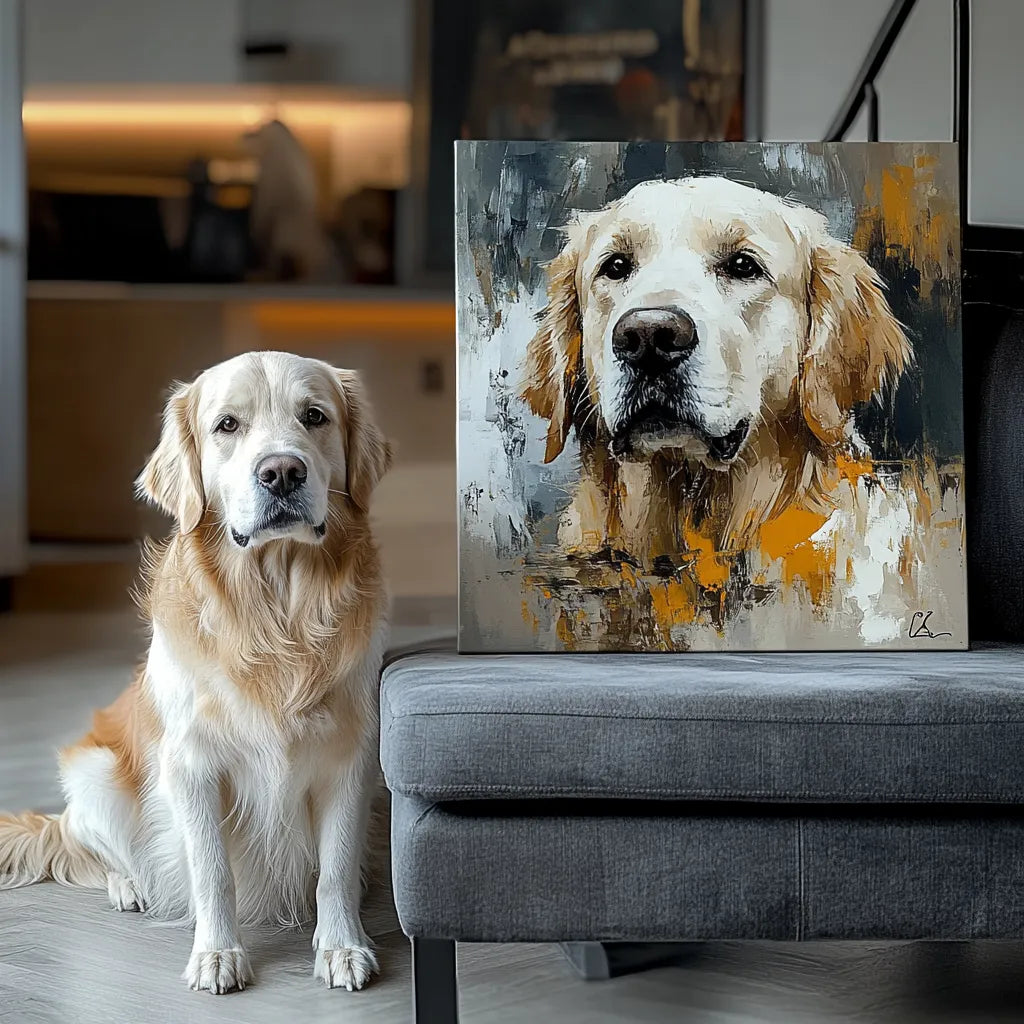
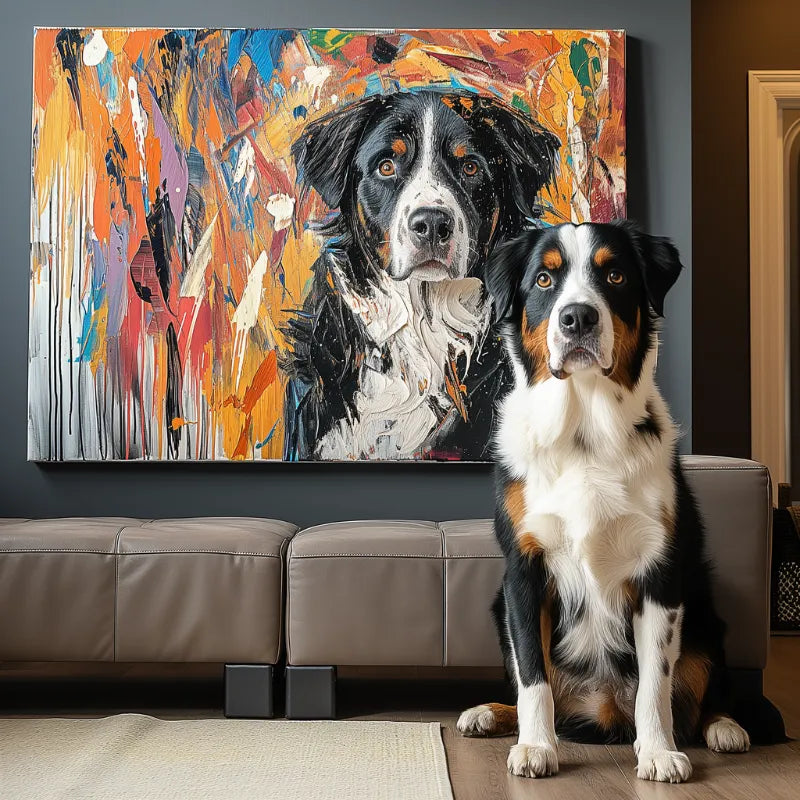

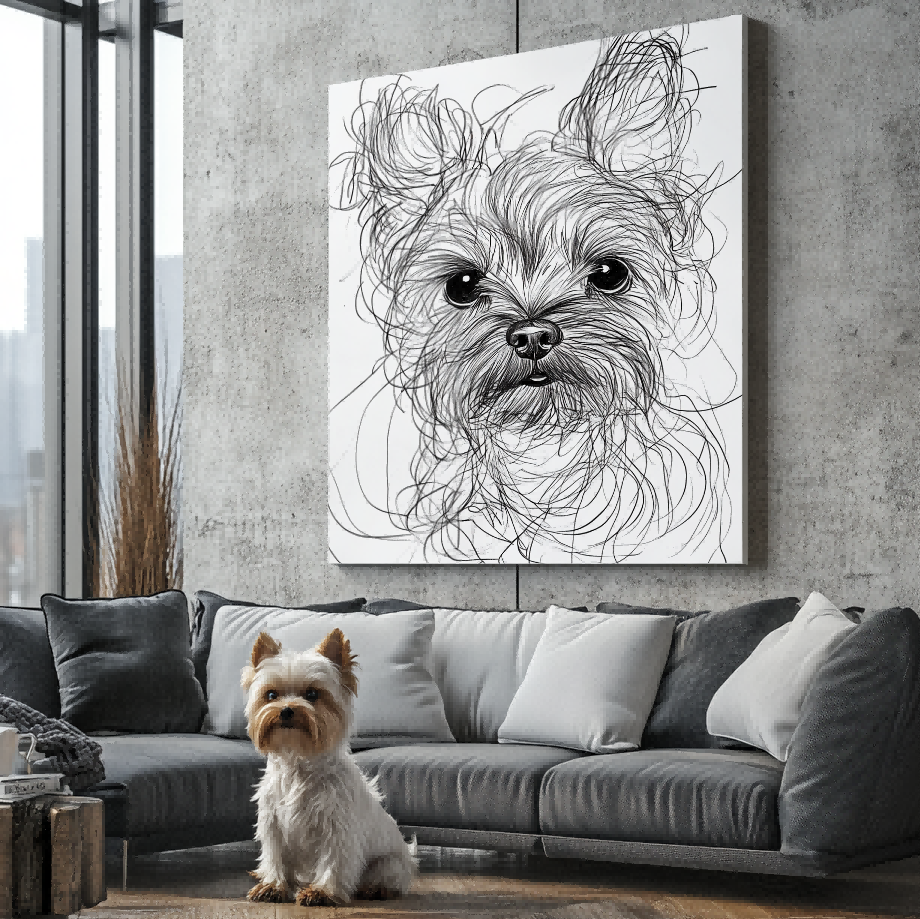

Most people do not need a professional camera to order a custom pet portrait. A clear phone photo is often the most practical starting point. The important question is not which phone took the picture. It is whether the image gives the artist enough visual information to understand your pet’s face, markings, expression, and proportions.
Start with the expression you recognize

Technical clarity matters, but personality matters too. Look through your camera roll for the expression that feels unmistakably like your pet: the slight head tilt, alert ears, sleepy eyes, or familiar grin.
If several photos feel meaningful, begin with the pet portrait photo checklist. It can help you compare source photos; this article focuses on preparing the selected phone image once you have narrowed the options.
Inspect the original image at full size
Open the original photo and zoom in. You should be able to distinguish the eyes, nose, mouth, ear shape, and any markings that make your pet recognizable. If the face turns into large blocks or loses detail immediately, look for a clearer frame from the same moment or another photo with a similar expression.
The background is usually less important than the pet. A busy room can be easier to work from than a perfectly tidy scene in which the face is dark or blurred. Avoid heavy filters that change natural fur or eye colors.
Keep the uncropped file
A crop can communicate which part of the photo matters most, but it can also remove useful space around ears, paws, or a tail. Upload the original file when possible and keep an uncropped copy. Screenshots, social-media downloads, and repeatedly forwarded images may contain less detail than the version saved in your phone’s photo library.
If you want a close portrait, say so rather than cutting the image so tightly that the composition has no room to adjust. The custom pet portrait ordering guide explains how the source photo fits into the broader buying process.
Add only useful supporting references
Choose one clear primary photo. A second or third image can clarify a hidden marking, eye color, tail shape, or ear position. Supporting photos should resolve a specific uncertainty; they should not create a larger pile of conflicting expressions and camera angles.
If you are taking a new photo, use window light or open shade when practical, keep the phone steady, and take several frames. Strong backlighting can turn the face into a silhouette, while a close flash may flatten detail or alter color.
Review the artwork rather than assuming the crop

Palette Tales provides an artwork preview before printing. Use that stage to check likeness, expression, visible markings, and composition. The Customer Preview Gallery shows examples of customer artwork and can help you understand how source photos translate into portraits.
Common Phone Photo Mistakes and Practical Fixes
The pet is a small part of the frame. Look for the original image and crop only enough to show the preferred focus while keeping useful space around the subject.
The eyes are hidden in shadow. Try another frame from the same moment or take a new photo in even natural light. Do not assume a dark, low-detail face can always be reconstructed.
A filter changes the coat color. Send the unfiltered original or include a clear reference that shows the natural color.
The only copy is a screenshot. Return to the photo library, cloud backup, or original sender and use the highest-quality version available.
Several photos show different expressions. Name one primary image and explain exactly what each supporting photo is meant to clarify.
A prepared phone photo does not need to look like a studio portrait. It needs to communicate the visual details and personality you want preserved. Once you have one clear primary image and a small number of useful references, compare the current options in the Custom Pet Portrait Collection.


